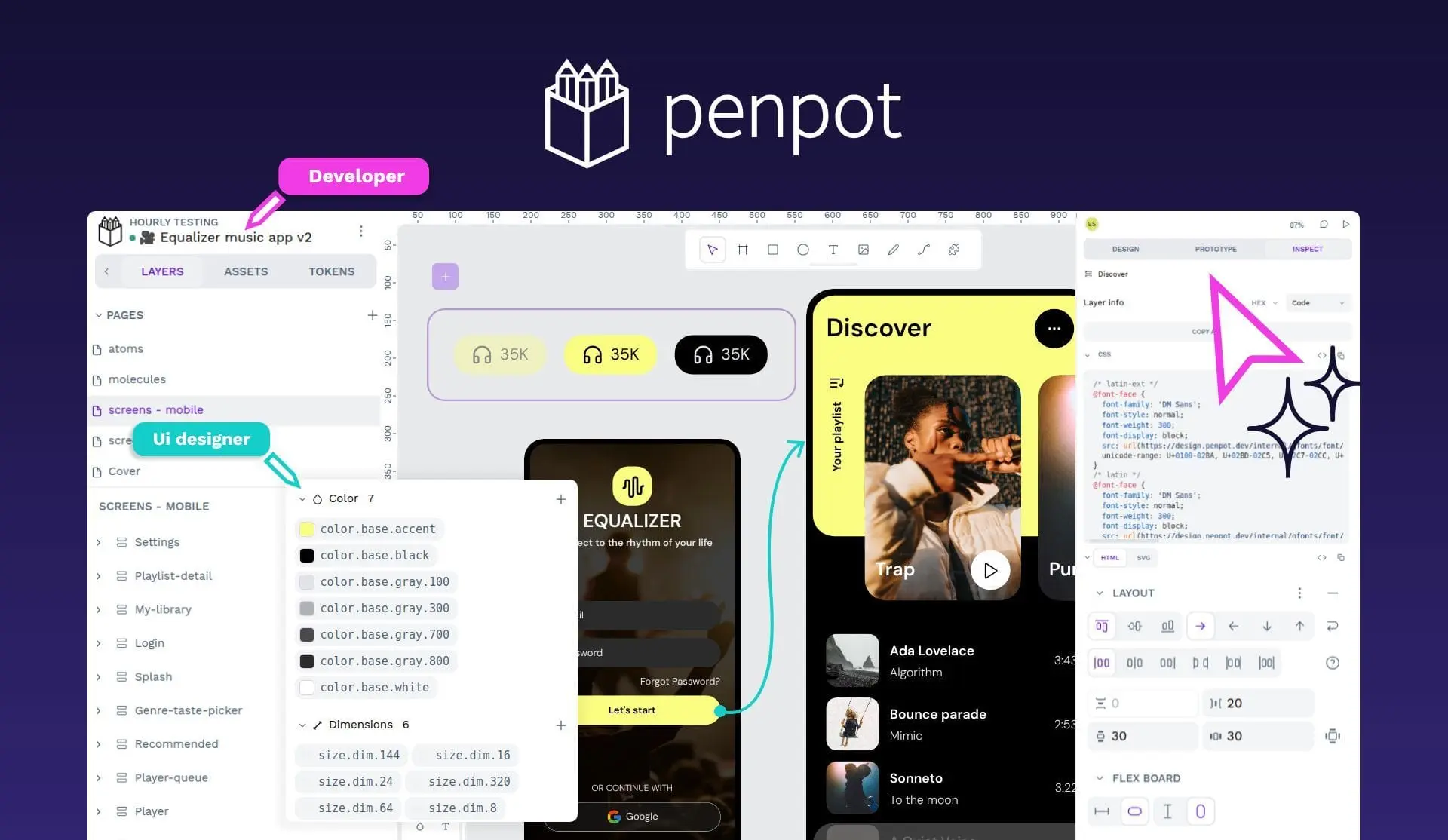
With Penpot 2.16, we shipped WebGL rendering (beta): an optional, faster canvas for demanding files. For years we relied on the browser’s SVG-based rendering path; it served us well, but on large, complex files the performance is no longer enough. We shared why we needed to move on back in 2024, and this beta is the first public slice of that work.
The early feedback is encouraging. Heavy boards feel smoother to pan and zoom. Teams running large design systems are trying it on real files. And, as with any ambitious foundation change, you are also surfacing gaps, visual differences, and fair questions about exports, view mode, and text.
This post is our version of the conversation we had when we launched Design Tokens as an MVP: what is in the beta today, what is intentionally not there yet, what we are prioritizing next, and which visual differences you should expect. We would rather be explicit now than have the same threads repeat in support and GitHub.
New to Penpot?
Welcome! Much of what follows is written for people who already have files and habits on the legacy SVG renderer. If that is not you yet, the short version is: we still encourage you to turn on WebGL rendering (Beta). Even with the quirks below, it is much closer to where Penpot is heading than the old path.
If you enjoy product strategy and tech stack deep dives, read on anyway. You will get a good sample of how we talk with the community about big bets, trade-offs, and beta honesty.
Regardless, if the beta feels too rough for your taste, not opting in for now is also fine.
What WebGL rendering is
When you enable WebGL rendering (Beta) in Your account → Settings or Workspace → Preferences, Penpot uses a new render path for the design workspace canvas. In practice, that means:

- Smoother interaction on complex files: less jank when panning and zooming heavy boards.
- Room for larger files that were painful or impractical on the legacy SVG renderer.
- More stable editing when a file pushes the limits of what the browser could draw before.
- A stronger foundation for design improvements that were poor ROI on the old renderer (background blur, per-side strokes, and the rest of the deal-breaker backlog).
- Better text on the canvas: text is laid out on the same engine as the rest of the canvas, without the old browser workarounds used on the legacy path.
- More predictable text, emoji, and thumbnails: The legacy renderer depended on each browser and OS, so the same file could look different for different people and thumbnails could drift. We now control that pipeline and have fixed many related text and preview issues we could not tackle before.
What is on WebGL today (and what is not)
| Area | In the first beta |
|---|---|
| Design workspace (canvas) | Yes, when you explicitly enable WebGL rendering (off by default) |
| View mode | No, still the legacy SVG renderer |
| Exports (PDF, SVG, PNG, WEBP) | No, still the legacy SVG renderer |
| Text editor | Typing is still the DOM-based editor (improved on WebGL, especially for large text). The canvas-based text editor is not in this beta yet. |
Practical consequence: if WebGL rendering is on, you may see differences between the canvas, view mode, your exports, and while editing text. That is expected in this slice, not a sign that something is broken on your machine.
We are not hiding that. We are sequencing the work.
What we are prioritizing next
We are not publishing a GA date here. We are sharing order of work so you know where our attention goes:
- Exports: Bring PDF, SVG, PNG, and WEBP in line with the new renderer. This is top priority after canvas hardening.
- Canvas-based text editor: Replace the DOM-based editor with one fully on the render engine, for editing that matches what you see on the canvas.
- View mode / viewer: So presentation and handoff match what you see while designing.
Alongside that, we continue stability and reliability work that is not tied to WebGL at all (crashes, server errors, collaboration edge cases). You will see that on our public roadmap under Design Experience and Reliability.
Performance is not only a rendering problem
WebGL addresses canvas rendering. It does not fix every performance pain point in Penpot.
A clear example: design tokens and components can feel slow to propagate when libraries update. That is a different layer of the stack, and we are working on it in parallel. If you hit slowness there, we want that feedback too, not only reports about pan and zoom.
Design improvements unblocked by the new renderer
For years, we held back a set of design deal-breakers because the old renderer was the bottleneck. With WebGL in beta, that backlog is actionable again. It does not mean everything lands at once but we can move much faster now.
Examples already on our roadmap:
- Background blur · Taiga #13436
- Stroke to path · Taiga #2956
- Stroke per side · Taiga #2372
- Image crop · Taiga #4095
- PDF export improvements · Taiga #7067
- Numbered lists · Taiga #5733
- Video player · Taiga #9254
Self-hosted early access: On self-hosted installations, background blur and stroke to path can be switched on ahead of general availability through configuration flags (with WebGL rendering enabled). If you run your own instance and want to try them early, check your deployment configuration for the relevant feature flags.
…and more. Please think “unblocked,” not “next Tuesday,” although some of these are closer than others and a few will land very, very soon.
Accepted differences and breaking changes
Moving to a new renderer means some pixels change on purpose. Others are known gaps we are tracking. Below is a plain-language summary of what we already accept or treat as breaking changes in the beta. (Engineering tracks the full list with issue references internally.)
Intentional behavior changes (closer to CSS and modern tools)
- Stroke stacking when “clip content” is off: The stroke can sit below content in a way that matches the CSS box model (similar to other design tools). On the legacy renderer, the stroke always covered the contents.
- Container strokes and clipping: A frame’s stroke is drawn over its children only when clipping is enabled. Layouts that relied on the old behavior may look different.
- Word breaking: We are aligning word-breaking policy with the new stack. Some existing text blocks may reflow or break differently than on the SVG renderer.
Fonts, emoji, and scripts
- Default emoji font: WebGL rendering uses Noto Sans Emoji by default. If your team relies on another emoji face, you can use it through custom fonts.
- Defaults for complex scripts: We also ship sensible Noto defaults for languages that need reliable fallbacks (for example Arabic, Japanese, and others). On the legacy path, Penpot often inherited whatever the local system offered, so switching to WebGL can change how emoji and some scripts look. That is an intentional trade-off for consistency when different people open the same file.
Gradients, strokes, and text
- Linear gradients on text strokes: On multi-line text, the new renderer applies the gradient across the shape (like fills). The old renderer applied it per line, due to an SVG limitation. We consider the new behavior the expected one.
- Text may look different: Inner strokes, anti-aliasing, and zoom can change tone or crispness. We disabled some anti-aliasing on the new path for performance; text can look softer at low zoom.
- Small outside strokes on text: Edge cases (very small glyphs) can differ when a text layer is focused.
- Strikethrough: Misalignment between edit mode and render is known; we expect improvements with the canvas-based text editor.
- Flattening text: Flattening a text layer can shift its position compared to the legacy renderer.
Shadows and effects
- Drop shadows: Shadows can appear softer or “more blurry” on the new renderer. We believe this is closer to what other tools and code expect.
- Shadows on paths: They can look different from the legacy SVG renderer. We consider the WebGL result closer to what you would get from CSS, and therefore the more correct behavior.
Selection, components, and editing
- Shape corners when selecting: After certain component updates, selection handles may not show corners the same way as before. Treated as an expected renderer difference.
- Text cursor and selection: Not always pixel-accurate in this beta. The canvas-based text editor is meant to fix this and is top priority, but it is not part of the first WebGL beta slice.
Loading
- Open time on large files: With WebGL rendering enabled, some files can take longer to open than on the legacy path, especially large, complex ones. That is an accepted trade-off of how the WebGL canvas engine loads.
If you notice something that is not covered here, please report it (see below). If you are on WebGL and a difference blocks your work, switching back to the legacy renderer is always valid.
How to try it, follow progress, and give feedback
Turn on WebGL rendering (Beta) from either entry point:
- Your account → Settings
- Workspace → Main menu → Preferences
Report issues
- Public bugs and discussions: github.com/penpot/penpot/issues/new
- Private or sensitive reports: support@penpot.app
- In-app: Give feedback in settings
Helpful details: browser and OS, whether WebGL rendering is on or off, export format if relevant, and steps to reproduce. For WebGL or performance issues, a screenshot of your WebGL Report page helps a lot.
What do you think?
We are genuinely excited about this moment. WebGL rendering (beta) is the first step in a change that will reshape how Penpot feels day to day: a faster, more capable canvas, and a foundation for improvements we could not build on the old renderer. For some (including the one writing this) it’s already a clear upgrade on real usage. For others, the gaps we listed above will matter more until exports, view mode, and the canvas-based text editor catch up.
Either way, we want to hear from you. What is working? What is still in your way? Tell us in the thread, open an issue, or write to support@penpot.app. Your feedback is how we decide what to harden next, and we are listening.